.jpg) California Baptist University Campus Store
California Baptist University Campus Store
Please enter search criteria.
Item Count: 0
Sub-Total: $0.00
Sub-Total: $0.00
Immediate Access Blackboard Tutorial

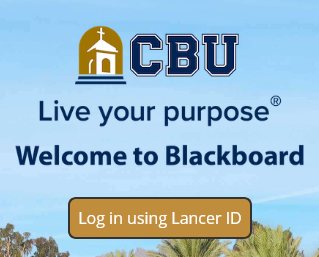
Step 1:
- Log in to your CBU Blackboard Account
- Make sure to use your Student Email & Password
- Click Here to visit the Welcome Page
Step 2:
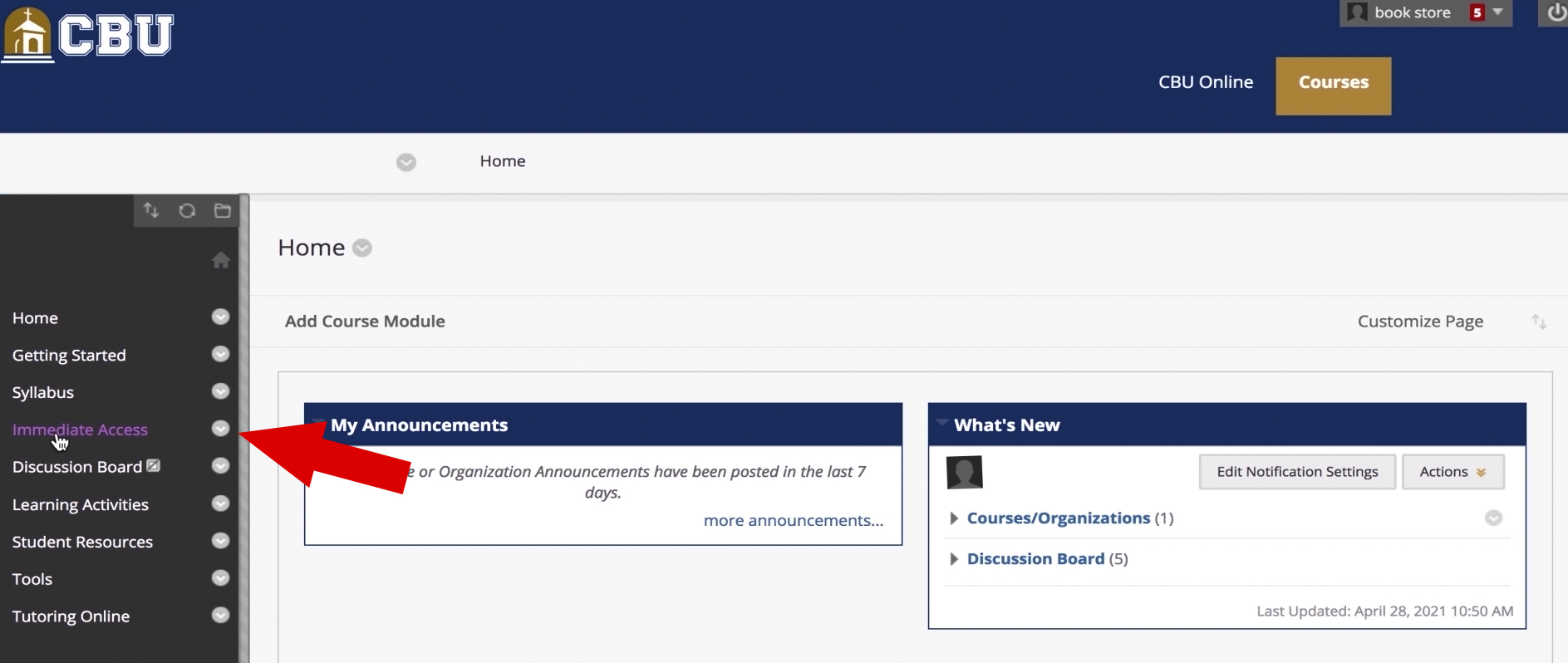
- Navigate to the Homepage of your Immediate Access Course
- Select the Immediate Access Tab within the content box on the left side of the screen
Step 3:
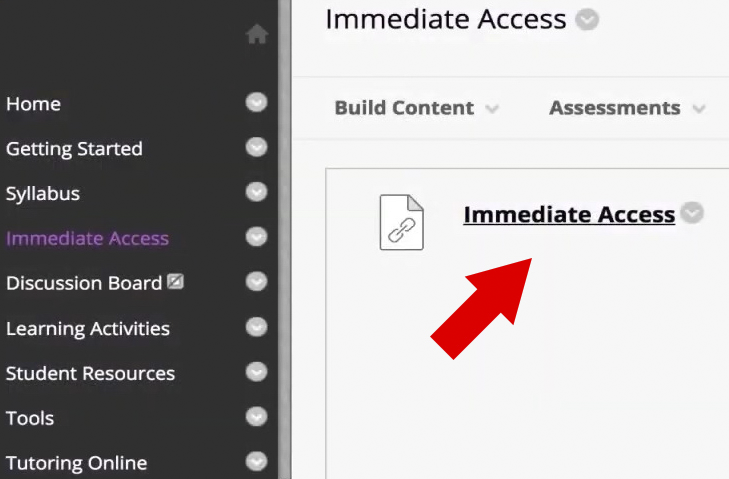
- Click on the Immediate Access Hyperlink
Step 4:
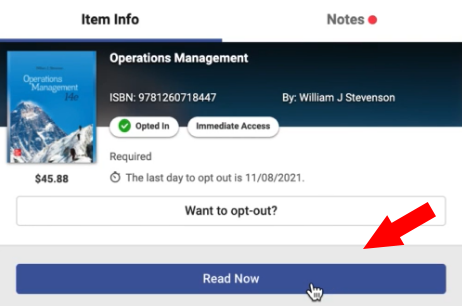
- Locate the Immediate Access Content Block(s) that you wish to access
- Click on the blue Read Now button to launch the title in Bookshelf
Step 5:
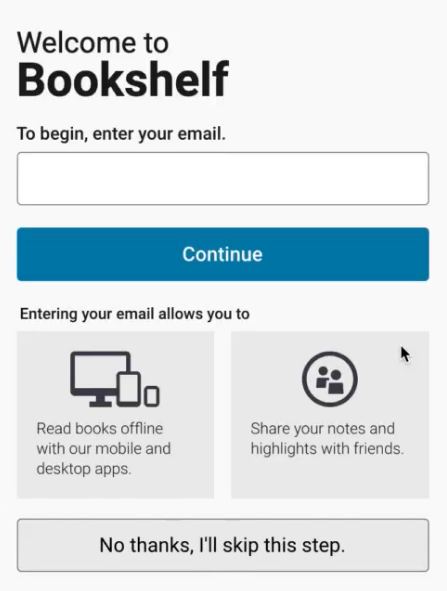
- If Applicable Create Your Bookshelf Account
- Some publishers such as Cengage & McGraw Hill may have you create an account on their personal website!
NOTE:
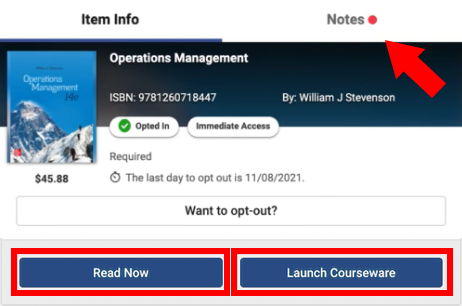
- You may have Read Now & Launch Courseware or Reveal Access Code
- Please click on the Notes tab within the upper right corner of the Immediate Access Content Block(s) you wish to access
- Further instruction on how to proceed will be displayed within
Please Repeat Steps 1-5 for All Immediate Access Courses You Wish to Access
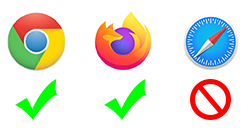
When trying to access your course materials directly from your desktop, it is recommended to use Chrome or Firefox
- How to Install Chrome (PC)
- How to Install Chrome (MAC)
- How to Install Firefox (PC)
- How to Install Firefox (MAC)
When accessing your materials using a mobile device, we highly recommend downloading the VitalSource Bookshelf app for IOS or Android when using your Immediate Access course materials. DO NOT use a mobile web browser.

Immediate Access Canvas Tutorial

Helpful Tutorials
Step 1:
- Log in to your CBU Canvas Account
- Make sure to use your Student Email & Password
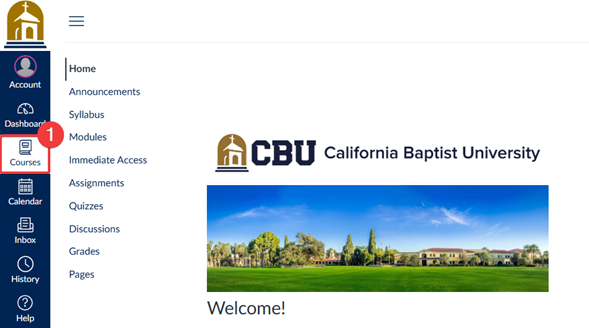
Step 2:
- Click Courses on the global navigation menu.
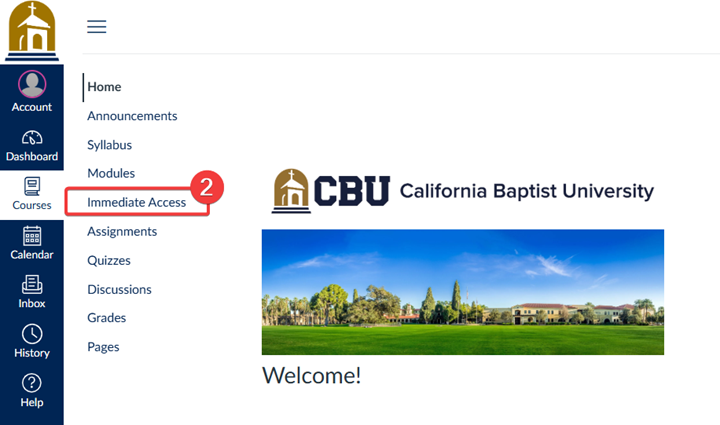
Step 3:
- Navigate to the Homepage of your course using Immediate Access.
- Click Immediate Access from the course menu on the left-hand side.
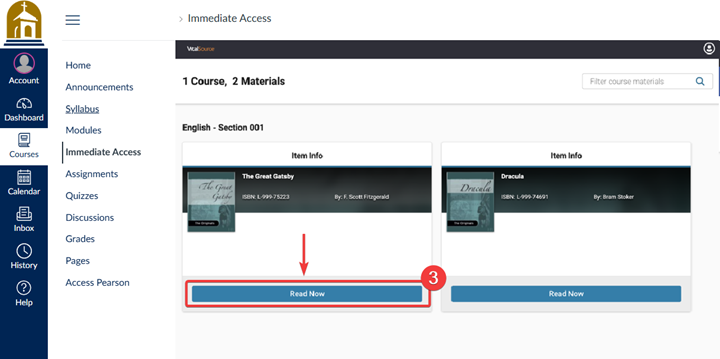
Step 4:
- Locate the Immediate Access title(s) that you wish to access.
- Click on the Read Now button to launch the title in VitalSource Bookshelf site.
Step 5:
- If Applicable Create Your Bookshelf Account
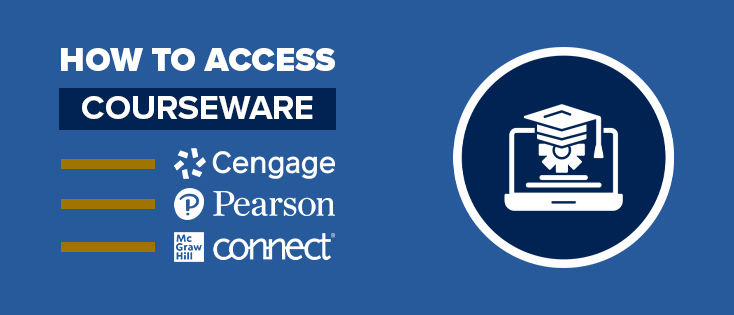
- Some publishers such as Cengage & McGraw Hill may have you create an account on their personal website!
NOTE:
- You may have Read Now & Launch Courseware or Reveal Access Code
- Please click on the Notes tab within the upper right corner of the Immediate Access Content Block(s) you wish to access
- Further instruction on how to proceed will be displayed within
Please Repeat Steps 1-5 for All Immediate Access Courses You Wish to Access
When trying to access your course materials directly from your desktop, it is recommended to use Chrome or Firefox
- How to Install Chrome (PC)
- How to Install Chrome (MAC)
- How to Install Firefox (PC)
- How to Install Firefox (MAC)
When accessing your materials using a mobile device, we highly recommend downloading the VitalSource Bookshelf app for IOS or Android when using your Immediate Access course materials. DO NOT use a mobile web browser.
Current Store Hours
Store hours
| Monday | 8:00AM - 5:00PM |
|---|---|
| Tuesday | 8:00AM - 5:00PM |
| Wednesday | 8:00AM - 5:00PM |
| Thursday | 8:00AM - 5:00PM |
| Friday | 8:00AM - 4:00PM |
| Saturday | CLOSED |
| Sunday | CLOSED |
-Footer-Logo.jpg)
.jpg) Lance Up! With official CBU Merchandise
Lance Up! With official CBU Merchandise